JL SVG Import Paid
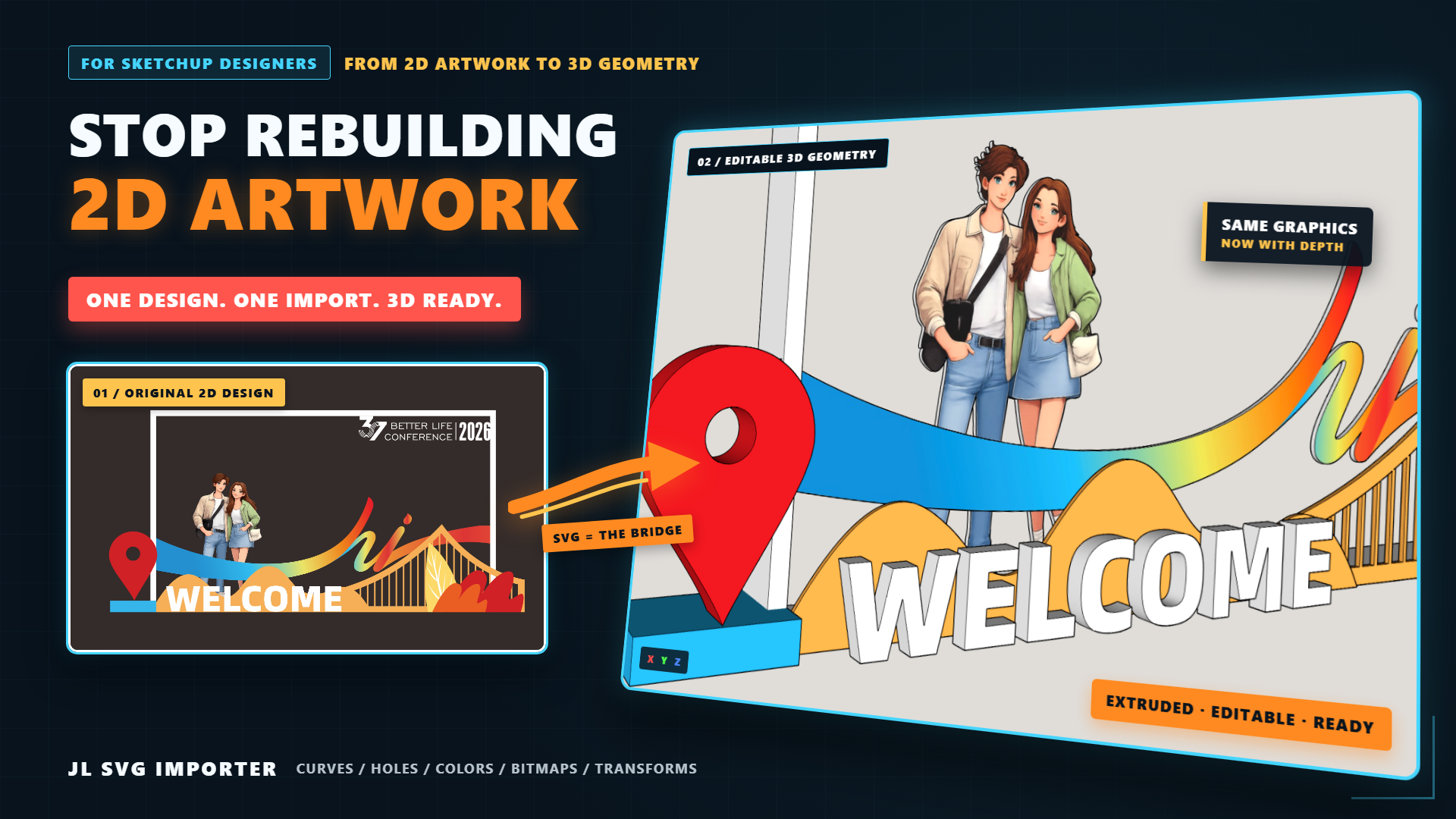
Vectors into SketchUp with faces, holes, extrusion, material colors, and textures.
Watch the demo on YouTube → Opens on youtube.com in a new tab.
Turning a flat vector drawing into modelable geometry usually means tracing it edge by edge in SketchUp. JL SVG Import skips that: pick an SVG and its curves are smoothed, closed contours become faces, cut-outs are punched with the even-odd rule, and you can extrude thickness in one step.
What it does
- Smoothed curves + automatic facesBézier curves are adaptively subdivided by chord-height error into smooth polylines; closed contours become faces you can push-pull right away.
- Even-odd holesInner and outer contours are detected automatically and cut-outs are punched into the face — no patching logo and pattern holes by hand.
- One-click extrude + smart softeningAdd thickness on import; after extrusion, edges are re-evaluated by dihedral angle so curved segments soften while real corners keep crisp lines.
- Bitmaps imported as texturesDetects CorelDRAW PowerClip (a bitmap inside a clip frame), extrudes the shaped contour and maps the image onto the top face; supports external image files and embedded base64 bitmaps.
- Fill colors as materialsOptionally bring SVG fill colors in as face materials (white / no-fill / gradient / semi-transparent are skipped to keep a clean white model).
- Place on facesDuring manual placement the preview snaps to the face under your cursor, aligning Z to its normal — drop straight onto walls, ceilings and slopes.
- Source-agnosticFull parsing of path / polygon / rect / line / circle / ellipse, every curve command (cubic and quadratic Béziers, smooth continuations, elliptical arcs) and transform (translate / rotate / scale / matrix, inherited down group levels).
- Stays out of your wayNo success pop-up; the whole import is a single operation (one Undo reverts everything); import options remember your last settings.
A little prep before import
Some SVG screen effects have no equivalent in SketchUp — handle these in your source app first:
- Graphic Processing Tips → Keep graphics as vector paths to convert them into 3D geometry. To use graphics as textures, convert them to bitmaps and place them inside a clipping shape.
- Text → convert to curves/outlines (Illustrator's Create Outlines, CorelDRAW's convert-text-to-curves on export). Keep a copy — outlining is irreversible.Each element will be grouped individually. Combine whole text blocks into one object for best results.
- Strokes → outline the stroke if you want a solid border; otherwise only the centerline is taken.
- Gradients / filters / lens effects → rasterize to a bitmap to keep them, then use the bitmap-texture path.
- Transparency → imported as solid color; do transparency in SketchUp with materials for full control.
Price & licence
Loading… one-time
One-time purchase, not a subscription. Includes minor-version updates. Use on up to 2 computers you personally use.
Checkout is handled by Paddle.com as Merchant of Record. VAT or sales tax for your country is added at checkout. refunds within 14 days.
30-day free trial
Try the full plugin for 30 days before deciding. No payment details needed to start the trial.
Loading localized price…
Installing
In SketchUp: Extensions → Extension Manager → Install Extension, then pick the .rbz file. Restart SketchUp if the toolbar/menu does not appear.
FAQ
- Which software's SVG is supported?
- CorelDRAW, Illustrator, Inkscape, Figma and AI-generated SVG — full parsing of geometry elements, every curve command and transforms (with group inheritance), regardless of source.
- Does it import text?
- text elements are not imported — convert text to curves (outlines) in your source app first. Keep a copy; outlining is irreversible.
- Can it import strokes (line weight)?
- Only the centerline is taken; for a solid border with width, outline the stroke before import.
- Why isn't my texture showing?
- Bitmap texturing needs thickness — set an extrude thickness greater than 0, then enable import bitmap as texture.
- Gradients or transparency?
- Semi-transparent fills import as solid color (opacity is dropped); vector gradients, filters and lens effects aren't parsed — rasterize them to a bitmap first.